
June 17, 2026
Intermediate
Giving an AI Its Own Door Into My Server: Building an OAuth-Protected MCP Server
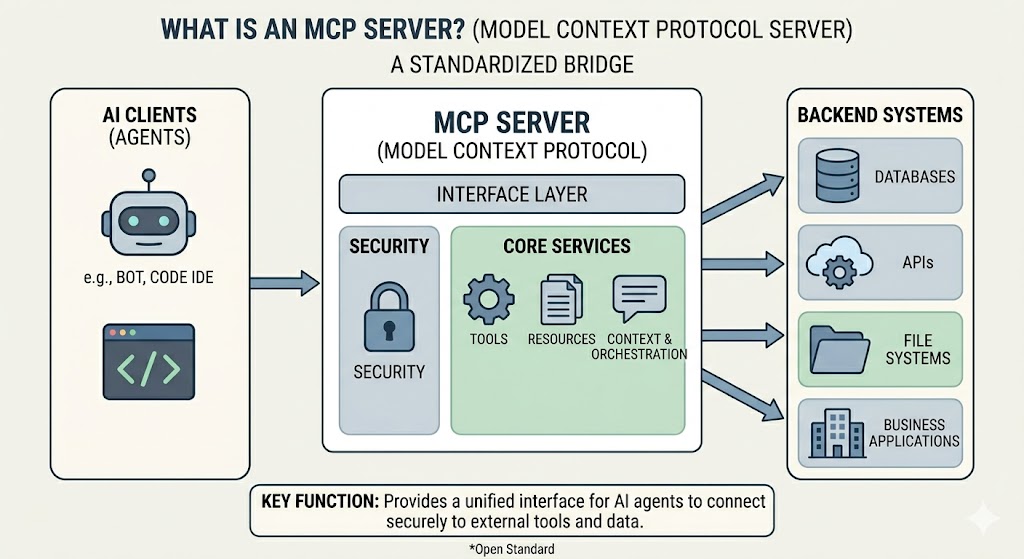
I set up something on my server that lets an AI assistant run real commands on it. Now I can ask, in plain English, "is the blog container healthy?" and it actually goes and checks, instead of me opening a terminal and typing everything by hand.
This post shows exactly how I built it, with the real code. I will still explain every piece in plain language first, so even if you have never heard of "nginx" or a "reverse proxy," you can follow along. Then I will show you the actual files running on my machine right now.
The 30-second mental model
Four ideas, and the whole thing makes sense:
- A server is a computer that runs all the time. Mine is a rented VPS (Virtual Private Server).
- MCP (Model Context Protocol) is a shared language that lets an AI talk to outside tools safely. Without it, the AI can only chat. With it, it can actually do things.
- An MCP server is a small program I wrote that sits between the AI and my machine. The AI asks it to do something, and it does the work. The AI never touches the machine directly.
- A lock on the door so that only I (through the AI) can get in. Nobody else on the internet can send commands.
Here is the shape of it. A request from the AI comes in over the internet, hits a receptionist (nginx) that checks who is allowed in, and gets passed to my little Node.js program.
Claude (cloud)
     |  HTTPS
     v
[ nginx-proxy container ]  <- TLS, routing, IP allow-list
     |  plain HTTP, internal only
     v
[ ops-mcp Node.js process ]  <- the MCP server + its own OAuth server
     |
     v
   bash on the VPS
One detail worth noting up front: my MCP server is not a Docker container. It runs natively on the host as a plain Node.js process managed by systemd. Everything else on my box (the blog, the database, MinIO) runs in containers, but this one talks to the host directly because its whole job is to run host commands.
Part 1: The server itself (index.mjs)
This single file is the entire MCP server. It does two jobs at once: it is the MCP server that exposes a tool, and it is its own OAuth 2.1 login server. That sounds like a lot, but the official MCP SDK does the heavy lifting.
A quick glossary before the code:
- Express is a tiny Node.js library for handling web requests.
- OAuth 2.1 is the "Sign in with Google" style of login. Instead of pasting a password every time, you get a temporary pass (a token) that proves you are allowed in.
- A bearer token is that pass. "Bearer" just means "whoever holds this token is allowed."
Here is the configuration block at the top. Notice it binds to 172.17.0.1, which is the internal Docker bridge address. That means the program is reachable by the nginx container but is not exposed to the public internet directly.
const PORT   = process.env.OPS_PORT || 8002;
const HOST   = process.env.OPS_HOST || "172.17.0.1"; // internal only, not public
const ISSUER = process.env.OPS_ISSUER || "https://mcp.mikkaiser.com";
const LOGIN_PASSWORD = process.env.OPS_LOGIN_PASSWORD; // the one password you type once
const ACCESS_TTL_MS  = 1000 * 60 * 60; // access tokens live 1 hour
const RESOURCE_URL   = new URL(`${ISSUER}/mcp`);

if (!LOGIN_PASSWORD || LOGIN_PASSWORD.length < 12) {
  console.error("Refusing to start: set OPS_LOGIN_PASSWORD (12+ chars).");
  process.exit(1);
}
The server keeps a tiny state file on disk so it remembers registered clients and tokens across restarts. No database needed.
const db = existsSync(STATE_FILE)
  ? JSON.parse(readFileSync(STATE_FILE, "utf8"))
  : { clients: {}, tokens: {}, refresh: {} };
const save = () => writeFileSync(STATE_FILE, JSON.stringify(db));
const rand = (n = 32) => randomBytes(n).toString("hex");
The login flow
When the AI connects for the first time, it does not know me yet. So three things happen, all handled automatically by the SDK plus a little glue code:
- Dynamic Client Registration: the AI registers itself and gets an ID. No manual setup on my side.
- Authorize: I get sent to a one-time password page in my browser.
- Token exchange: once I type the password, the AI receives a pass it can reuse.
The password page is literally rendered by this function. It is deliberately bare-bones:
async authorize(client, params, res) {
  const payload = Buffer.from(JSON.stringify({
    clientId: client.client_id,
    redirectUri: params.redirectUri,
    state: params.state,
    codeChallenge: params.codeChallenge,
  })).toString("base64url");

  res.send(`<!doctype html><meta name=viewport content="width=device-width">
    <body style="font-family:system-ui;max-width:340px;margin:80px auto">
    <h3>Authorize Ops MCP</h3>
    <form method="POST" action="/approve">
      <input type="hidden" name="p" value="${payload}">
      <input name="password" type="password" placeholder="password" autofocus
             style="width:100%;padding:8px;margin:8px 0">
      <button style="width:100%;padding:8px">Authorize</button>
    </form></body>`);
}
When I submit that form, this handler checks the password and, if it matches, mints a short-lived authorization code and bounces me back to the AI:
app.post("/approve", (req, res) => {
  let info;
  try { info = JSON.parse(Buffer.from(req.body.p, "base64url").toString()); }
  catch { return res.status(400).send("bad request"); }

  if (req.body.password !== LOGIN_PASSWORD) {
    audit({ event: "login_failed", ip: req.ip });
    return res.status(401).send("wrong password");
  }

  const code = rand(16);
  codes.set(code, {
    clientId: info.clientId,
    codeChallenge: info.codeChallenge,
    redirectUri: info.redirectUri,
    expiresAt: Date.now() + 60_000, // code is valid for 60 seconds
  });
  audit({ event: "authorized", clientId: info.clientId });

  const url = new URL(info.redirectUri);
  url.searchParams.set("code", code);
  if (info.state) url.searchParams.set("state", info.state);
  res.redirect(url.toString());
});
After this, the AI holds a refresh token and never prompts me again. I type the password exactly once, ever.
The actual tool
This is the part that does the work. It exposes a single tool called run_command. Every call is written to an audit log so I have a record of everything the AI ran.
server.registerTool(
  "run_command",
  {
    title: "Run shell command",
    description: "Run an arbitrary bash command on the VPS. Returns stdout, stderr and exit code.",
    inputSchema: { command: z.string().describe("The shell command to execute") },
  },
  async ({ command }) => {
    audit({ tool: "run_command", command });
    const result = await new Promise((resolve) =>
      exec(command,
        { timeout: CMD_TIMEOUT_MS, maxBuffer: 10 * 1024 * 1024, shell: "/bin/bash" },
        (err, stdout, stderr) => resolve({
          exitCode: err?.code ?? 0,
          timedOut: err?.killed === true,
          stdout: stdout?.toString() ?? "",
          stderr: stderr?.toString() ?? "",
        })));
    audit({ tool: "run_command", command, exitCode: result.exitCode });
    return {
      content: [{ type: "text", text: JSON.stringify(result, null, 2) }],
      isError: result.exitCode !== 0,
    };
  }
);
Finally, the wiring. The MCP endpoint is wrapped in requireBearerAuth, which rejects any request that does not carry a valid token:
app.post("/mcp",
  express.json({ limit: "10mb" }),
  requireBearerAuth({
    verifier: provider,
    resourceMetadataUrl: getOAuthProtectedResourceMetadataUrl(RESOURCE_URL),
  }),
  async (req, res) => {
    const server = buildServer();
    const transport = new StreamableHTTPServerTransport({ sessionIdGenerator: undefined });
    res.on("close", () => { transport.close(); server.close(); });
    await server.connect(transport);
    await transport.handleRequest(req, res, req.body);
  }
);

app.listen(PORT, HOST, () => {
  console.log(`Ops MCP (OAuth) on ${HOST}:${PORT}, public ${ISSUER}/mcp`);
});
The dependencies are minimal:
{
  "dependencies": {
    "@modelcontextprotocol/sdk": "^1.29.0",
    "express": "^5.2.1",
    "zod": "^4.4.3"
  }
}
Part 2: Keeping it alive (systemd)
I do not want to babysit this process. systemd is the part of Linux that starts programs at boot and restarts them if they crash. I describe my program in one file and Linux takes care of the rest.
[Unit]
Description=Ops MCP server (OAuth) for claude.ai
After=network.target docker.service

[Service]
Type=simple
User=root
WorkingDirectory=/opt/ops-mcp
ExecStart=/usr/bin/node /opt/ops-mcp/index.mjs
Restart=on-failure
RestartSec=3
Environment=OPS_PORT=8002
Environment=OPS_HOST=172.17.0.1
Environment=OPS_ISSUER=https://mcp.mikkaiser.com
Environment=OPS_LOGIN_PASSWORD=your-strong-password-here
Environment=OPS_AUDIT_LOG=/var/log/ops-mcp/audit.log
Environment=OPS_STATE_FILE=/opt/ops-mcp/state.json

[Install]
WantedBy=multi-user.target
A word on User=root: that line sets the blast radius. Running as root means the AI has full, unrestricted access to the machine. That is a deliberate, high-trust choice for my own server. If you want to limit what the AI can touch, run it as a less privileged user instead. Then enable and start it:
sudo systemctl daemon-reload
sudo systemctl enable --now ops-mcp
sudo systemctl status ops-mcp
Part 3: The receptionist (nginx)
Here is the problem nginx solves. My server hosts many things behind one public address: the blog, MinIO storage, and now this MCP server. When a request arrives, something has to decide which project it belongs to.
Nginx (say it "engine-x") is that receptionist. It is a reverse proxy, which is a fancy term for "one front desk that forwards each visitor to the right room." It also handles HTTPS (the padlock in your browser) so the conversation is encrypted.
The clever bit in my config is that nginx splits the MCP subdomain into two zones with different rules. The login pages must be reachable from my browser (any IP), but the sensitive endpoints should only be reachable by Anthropic's servers. Here is the real vhost:
# Redirect plain HTTP to HTTPS, with a passthrough for cert renewal
server {
    listen 80;
    server_name mcp.mikkaiser.com;

    location /.well-known/acme-challenge/ {
        proxy_pass http://host.docker.internal:8080;  # certbot
        proxy_set_header Host $host;
    }
    location / {
        return 301 https://$host$request_uri;
    }
}

server {
    listen 443 ssl;
    http2 on;
    server_name mcp.mikkaiser.com;

    ssl_certificate     /etc/letsencrypt/live/mcp.mikkaiser.com/fullchain.pem;
    ssl_certificate_key /etc/letsencrypt/live/mcp.mikkaiser.com/privkey.pem;
    include /etc/letsencrypt/options-ssl-nginx.conf;
    ssl_dhparam /etc/letsencrypt/ssl-dhparams.pem;

    # Login pages: must be reachable from MY browser, so no IP restriction
    location ~ ^/(authorize|approve)$ {
        proxy_pass http://host.docker.internal:8002;
        proxy_http_version 1.1;
        proxy_set_header Host $host;
        proxy_set_header X-Real-IP $remote_addr;
        proxy_set_header X-Forwarded-Proto https;
    }

    # Everything else (/mcp, /token, /register, discovery): Anthropic IPs ONLY
    location / {
        allow 160.79.104.0/21;
        deny all;

        proxy_pass http://host.docker.internal:8002;
        proxy_http_version 1.1;
        proxy_set_header Connection "";
        proxy_set_header Host $host;
        proxy_set_header X-Real-IP $remote_addr;
        proxy_set_header X-Forwarded-Proto https;
        proxy_buffering off;
        proxy_read_timeout 3600s;
    }
}
Two things to highlight. First, host.docker.internal:8002 is how the nginx container (a box) reaches the MCP process running on the host (outside the box). Second, that allow ... deny all block is a hard wall: the actual command endpoint will not even answer a request unless it comes from Anthropic's published outbound IP range.
Part 4: The padlock (Let's Encrypt)
The HTTPS certificate comes from Let's Encrypt, a free certificate authority, via a tool called certbot. The plain-HTTP block above quietly forwards /.well-known/acme-challenge/ requests to certbot so it can prove I own the domain and issue (and later auto-renew) the certificate.
sudo certbot --nginx -d mcp.mikkaiser.com
Putting it together
The full setup, start to finish, was:
# 1. DNS: point mcp.mikkaiser.com -> <your server IP>

# 2. Install the code
sudo mkdir -p /opt/ops-mcp && cd /opt/ops-mcp
npm init -y
npm install @modelcontextprotocol/sdk express zod
sudo mkdir -p /var/log/ops-mcp

# 3. Drop in the systemd unit, then:
sudo systemctl daemon-reload
sudo systemctl enable --now ops-mcp

# 4. Add the nginx vhost, get the cert
sudo nginx -t && sudo systemctl reload nginx
sudo certbot --nginx -d mcp.mikkaiser.com

# 5. Verify OAuth discovery is public
curl -s https://mcp.mikkaiser.com/.well-known/oauth-protected-resource/mcp
Then in Claude, I added a custom connector pointing at https://mcp.mikkaiser.com/mcp. On first use it sent me to the password page once. Since then it has held a refresh token and never asked again.
Why it is worth it
Before this, every check on my server meant opening a terminal, connecting, remembering the exact command, and reading the output myself. Now I can ask in plain English, even from my phone, and the assistant goes through the front door, shows its pass, runs the command, and reads the result back.
If you strip away the jargon, it is still just the four ideas from the top: a small program that does the work, a receptionist that routes traffic, a lock so only I get in, and an AI that knows the address and holds a pass. The fun is wiring them together until they cooperate. And once they do, you get a server you can talk to like a colleague.
A note on safety: this server can run any command as root. That is a powerful and risky capability. The protections that make me comfortable with it are the OAuth login, the IP allow-list pinned to Anthropic, the audit log of every command, and HTTPS everywhere. If you build your own, treat the login password like a master key and consider running as a restricted user.
Post Author

Mikael Ribeiro
I'm currently an information technology teacher in the United Arab Emirates. My mission is to empower the next generation of software professionals with the skills and knowledge they need to stand out on the global stage.